More than a trillion images are uploaded online every year, and many of them contain useful text—quotes, statistics, or passages that need to be digitized (for example, a rare book in a library). Fortunately, there are several simple ways to extract text from pictures. This article walks you through five effective, free methods for converting image text into editable, searchable text, plus common use cases and limitations.
How to extract text from an image
You can extract text from images in multiple ways, including:
- Using an online image-to-text extractor (OCR)
- Converting an image to editable text with Google Drive
- Using Microsoft Word or AI chat tools
- Employing mobile tools like Google Lens
Below are five practical methods and step-by-step instructions.
- Use an image text extractor (online OCR) An image text extractor is the fastest, most direct option. Most online tools support common image formats (PNG, JPG, WEBP) and PDFs and will return editable text you can copy or download.
Typical steps:
- Open the image-to-text service in your browser (e.g., Image To Text Converter or another free OCR).
- Upload or drag-and-drop the image or PDF.
- (Optional) Use the editor to crop or rotate the image so the tool only reads the desired area.
- Click Convert (or Extract) and wait a few seconds.
- Download the result as TXT, DOC, or PDF, or copy the output to your clipboard.
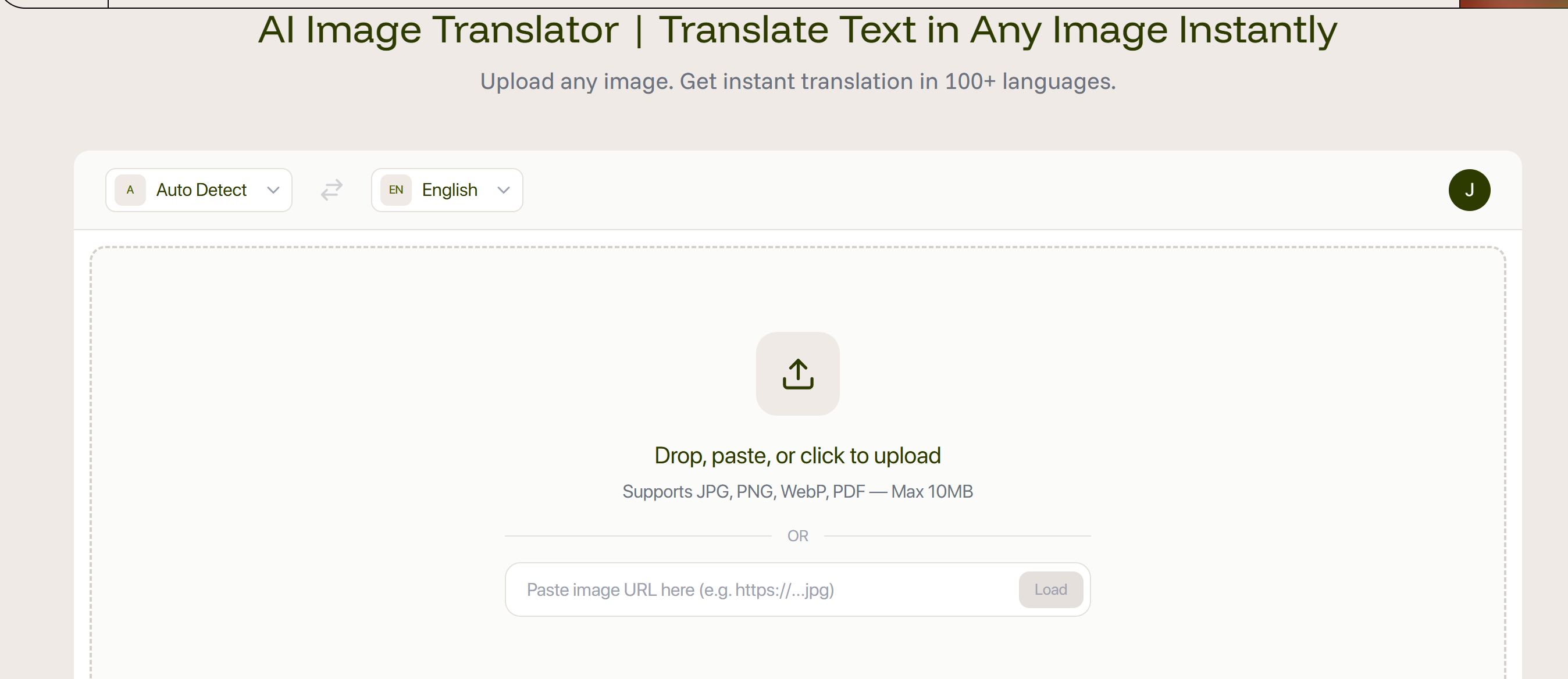
Notes: Conversion speed depends on file size. Modern OCR tools augmented with AI often handle complex layouts and noisy backgrounds more accurately.
- Convert the image with Google Drive (Google Docs) Google Drive can extract text from images by opening them in Google Docs. It’s convenient and free, though formatting may not be preserved.
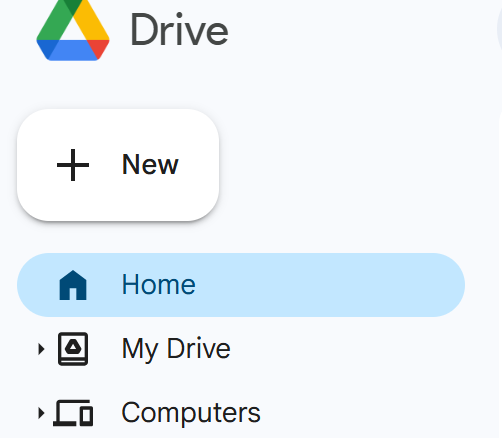
Steps:
- Upload the image or PDF to Google Drive.
- Right-click the file > Open with > Google Docs.
- A new Docs file will open containing the image and the extracted, searchable text below it.
Notes: Google Docs often struggles to retain original formatting and complex layouts, so expect to proofread and reformat the output.
- Extract text using Microsoft Word Word can extract text from an image by converting the Document -> PDF -> Word flow. It’s useful if you already work with Word.
Steps:
- Insert the image into a new Word document.
- Save the document as a PDF (File > Save As > PDF).
- Right-click the PDF and open it with Microsoft Word (or open Word and choose File > Open > select the PDF).
- Word will prompt to convert the PDF; confirm and review the extracted text.
Notes: Accuracy varies with image quality; scanned images or low-resolution photos may yield poor results.
- Use AI tools that support images Many AI chatbots and assistants (e.g., ChatGPT with image support, Claude, Gemini) can read and extract text from uploaded images.
Steps:
- Open your AI tool of choice and upload the image.
- Ask the assistant to “extract text from this image” (or a similar prompt).
- Copy the extracted text from the AI response.
Notes: AI tools can be especially helpful for mixed content, multi-language text, or when you want the tool to summarize or reformat the output. Check each tool’s privacy policy if the image contains sensitive information.
- Extract text with Google Lens (mobile) Google Lens provides quick, camera-to-text conversion on mobile devices.
Steps:
- Open Google Lens or the Google Photos app and select the photo, or use the Lens camera live.
- Tap “Select text” to highlight the text you want.
- Tap “Copy” to copy the text to your clipboard, or use built-in options like “Search” or “Translate.”
Notes: Google Lens is fast and works well for printed text in photos. It may be less reliable for messy handwriting.
What technology powers image text extraction?
Optical Character Recognition (OCR) is the core technology used to read and convert image-based text into digital text. Modern OCR systems often incorporate AI and machine learning to improve accuracy, recognize diverse fonts, and handle noisy or complex backgrounds.
Extracting text from PDF images
An image text extractor (OCR) is typically the most efficient choice for PDF images. You can also use Google Docs or Word to convert PDFs, but results may suffer if the PDF is a scanned image or the image quality is low. For better results, use an OCR tool that supports PDF input and AI-enhanced recognition.
Extracting handwritten text
Handwritten text is harder to convert. Some methods (Google Drive, Google Lens) struggle with handwriting. AI-powered image-to-text tools or specialized handwriting-to-text converters usually provide better results. Accuracy still depends on handwriting legibility and image quality.
Applications of image text extraction
Common uses include:
- Studying: digitize book pages, screenshots, or scanned notes
- Note-taking: convert handwritten or printed notes into digital text
- Data entry: extract text from receipts, forms, and tables to save time and reduce manual entry errors
- Office work: copy text from images in emails, presentations, or scanned documents to support paperless workflows
Conclusion
These five methods—online image text extractors, Google Drive, Microsoft Word, AI tools, and Google Lens—cover most needs for extracting text from images. Choose the method that best suits your image format, text quality, and privacy requirements. Each method has trade-offs in accuracy and formatting preservation, so proofread and reformat when needed.