

Support
Frequently Asked Questions
Everything you need to know about Intent — translation, voice cloning, contacts, privacy, and more. Can't find an answer? Email support@intent.app.
Intent is an AI-powered messaging app that supports real-time multilingual conversations.
It automatically translates text and voice messages, allowing you to communicate smoothly with people who speak different languages — all in your own language.
Intent is designed for anyone who needs to communicate across languages in daily life or work, including:
- Immigrant families and multilingual communities
Stay connected with family members and friends who speak different languages. - Cross-cultural and long-distance couples
Express feelings naturally without worrying about language barriers. - International students and campus communities
Communicate easily with classmates, roommates, and friends from different countries. - Cross-border professionals and global travelers
Including international trade practitioners, exhibitors, freelancers, and anyone working in multilingual environments.
In short, Intent is for anyone, anywhere in the world, who wants smoother, more natural conversations across languages.
Intent currently supports real-time text translation in 231 languages and voice cloning in 39 languages.
You can check the to see whether your language is supported.
We are continuously expanding our language coverage.
If you would like us to add a new language, feel free to contact us at hello@intent.inc.
Intent is free to download and use. Some advanced features may be introduced later.
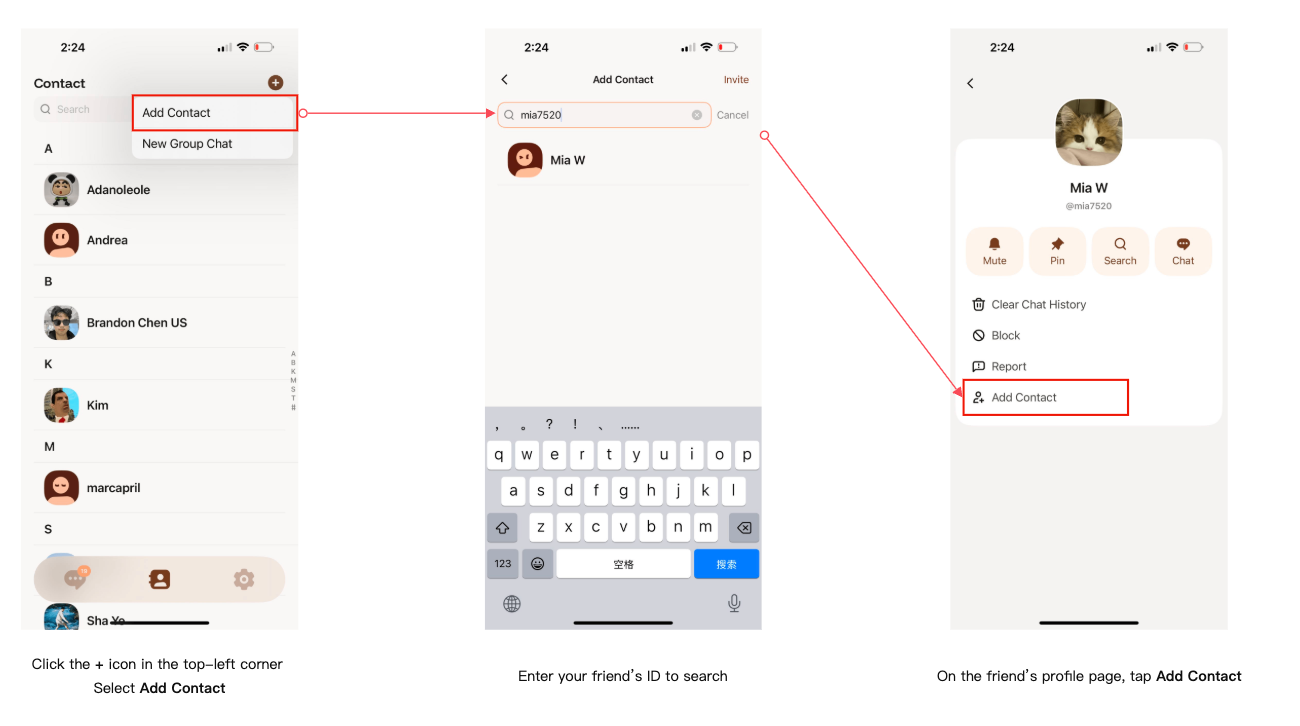
You can add a contact by searching their 【User ID】.
Please follow the steps below 👇
- Step 1
Go to the Contacts page in the app, then tap the "+" icon in the top-right corner. - Step 2
Select "Add Contact" from the menu. - Step 3
Enter your friend's User ID in the search bar (for example: mia7520), then search. - Step 4
Tap the user to open their profile, then tap "Add Contact".
Once added, you can start chatting right away.
Tips
- Please make sure the User ID is spelled correctly.
- User IDs may be case-sensitive.
- If no result appears, the user may not be registered yet.
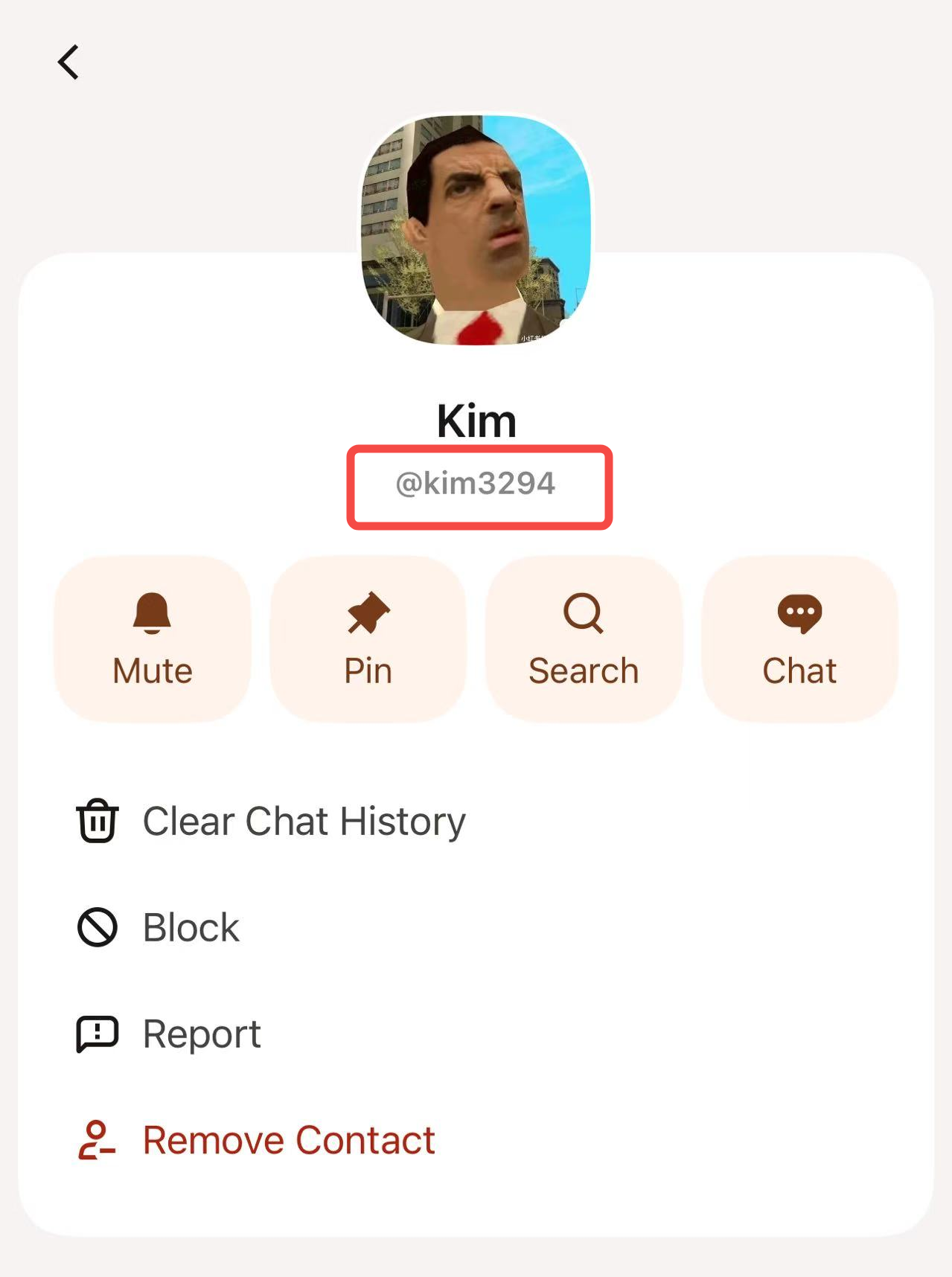
Please make sure you are searching for the User ID, not a nickname or display name.
The User ID can be found on the user’s profile or settings page.
Yes. With your permission, Intent allows you to import contacts from your address book.
Once the other person has set their target language, the messages you send will automatically appear on their screen in their preferred language.
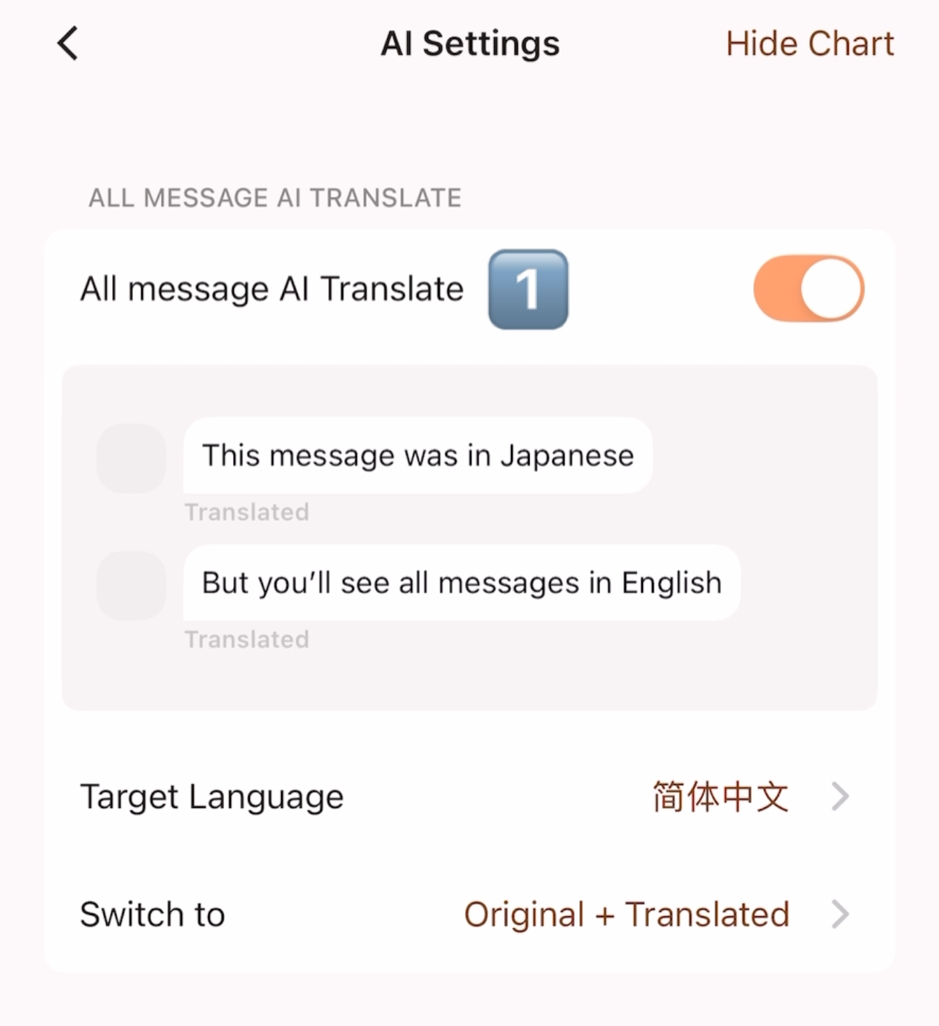
Click on Settings - AI Settings.
You can then select your preferred language in "Target Language".
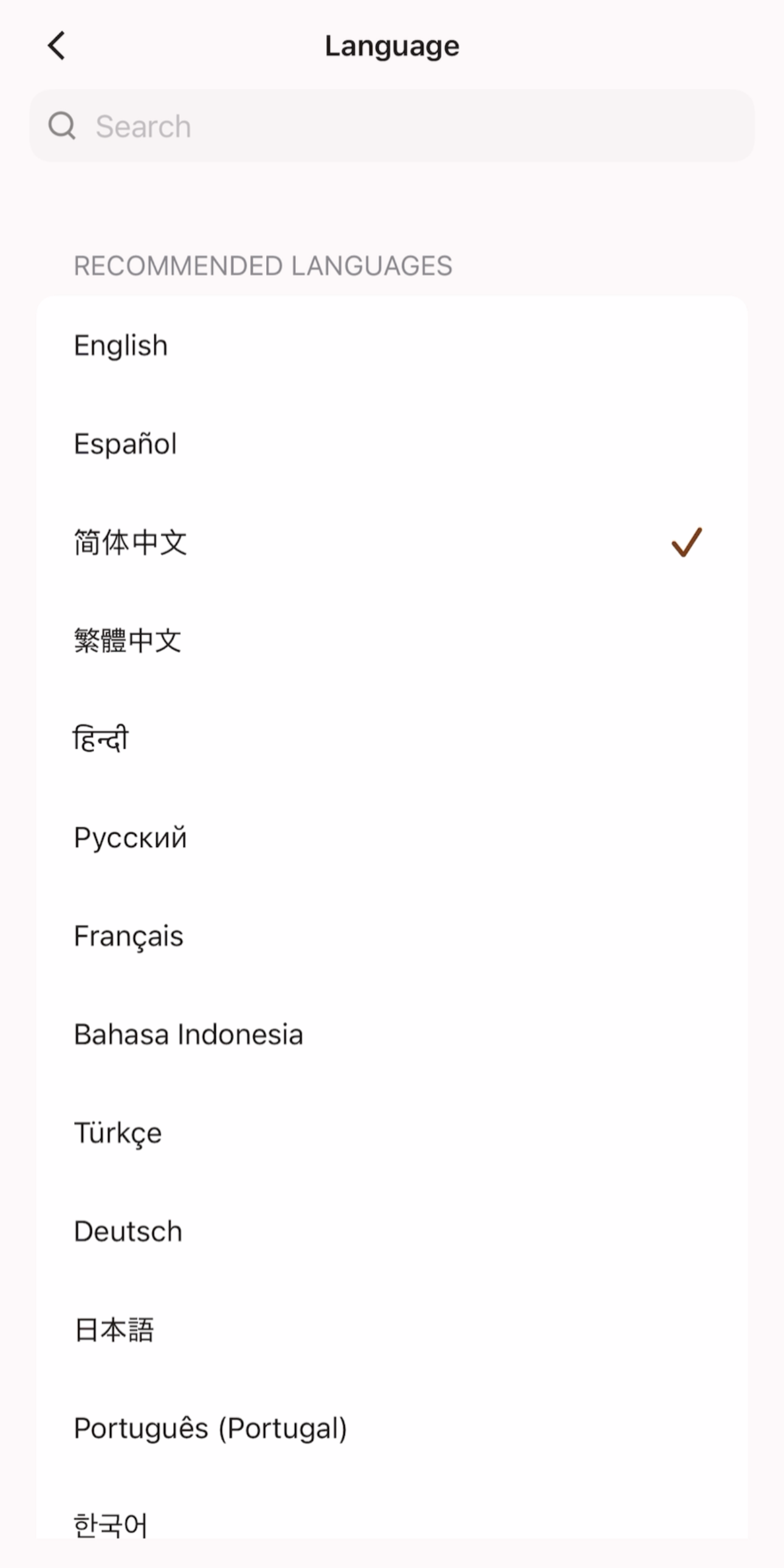
After selecting the language, keep the "ALL message AI Translate" switch turned on. All messages from the other party will automatically be displayed in your preferred language.
You can long-press the message and select “Show original language” to view the original text.
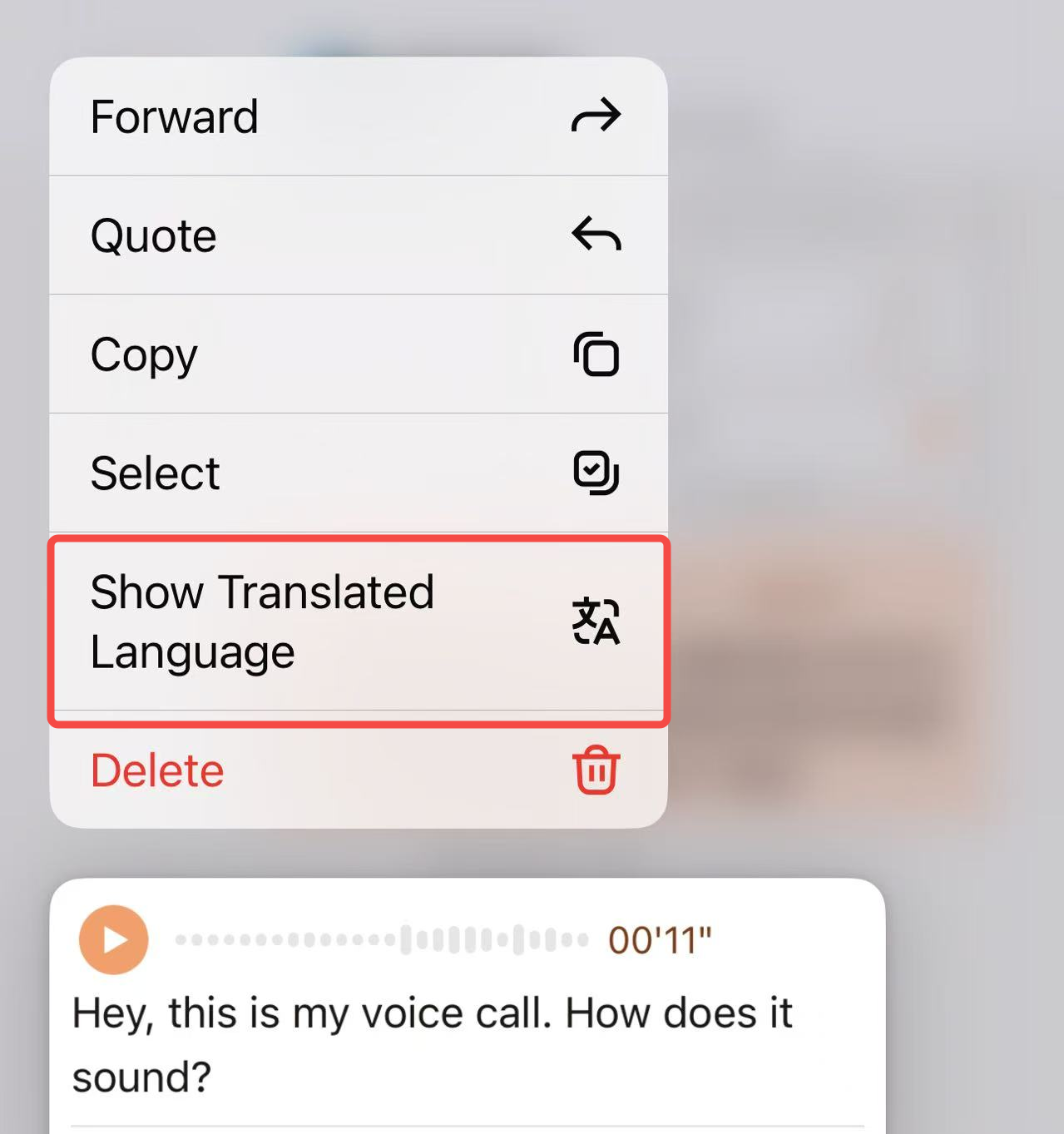
Voice cloning translates voice messages while preserving your voice and tone.
When you upload a voice sample and turn on voice cloning, the other person will hear your voice — just translated into their language.
- For first-time setup, go to Voice Management and add a voice sample.
- Once recorded, a sample cannot be edited, but you may delete and re-record it.
- Each account can store up to 3 samples.
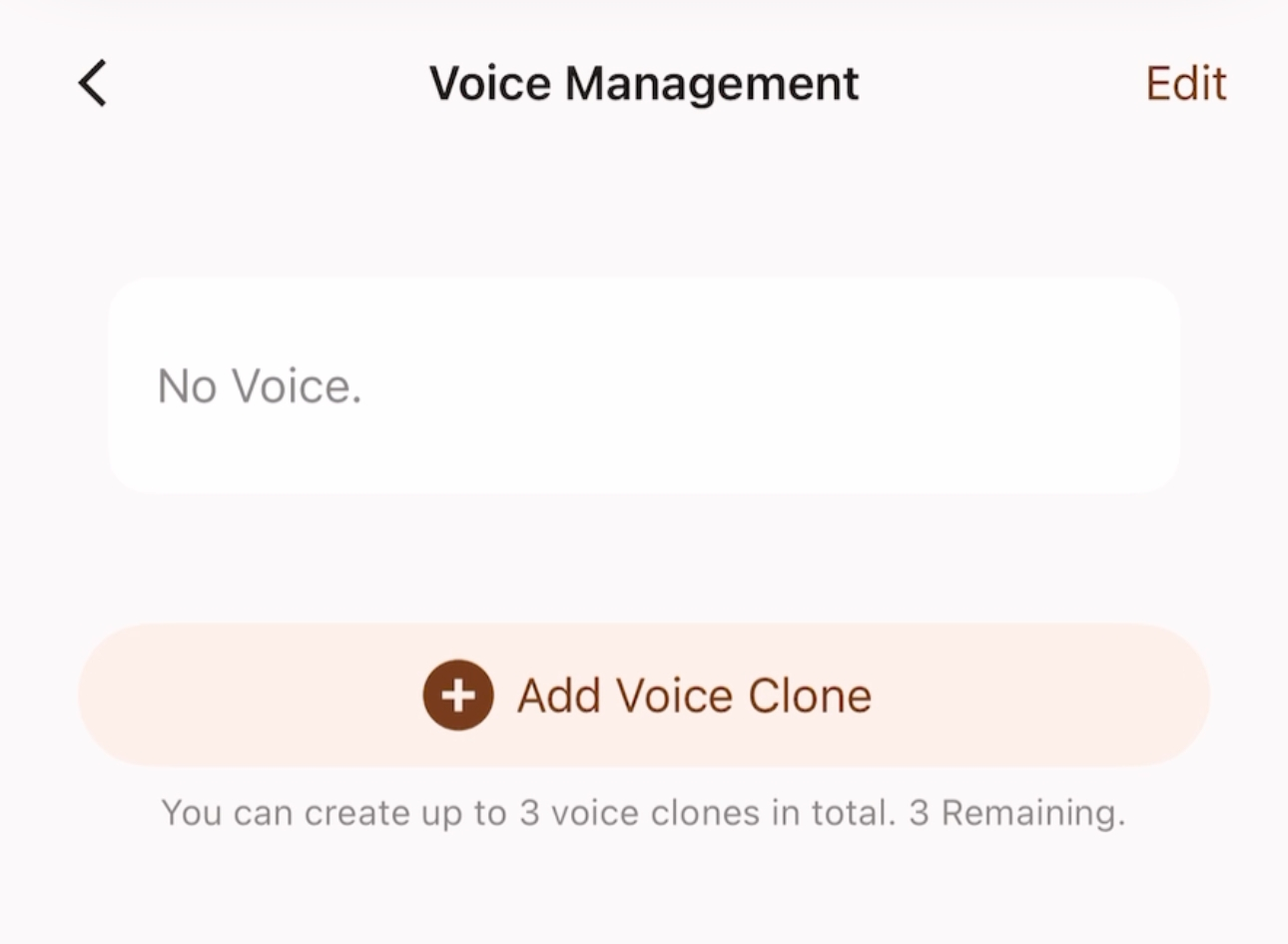 Existing voice samples will be displayed here. Click "Add Voice Clone" to begin the recording process.
- Tap Start Recording and read the provided sample text as instructed.
- For best results, record at least 8 seconds in a quiet environment.
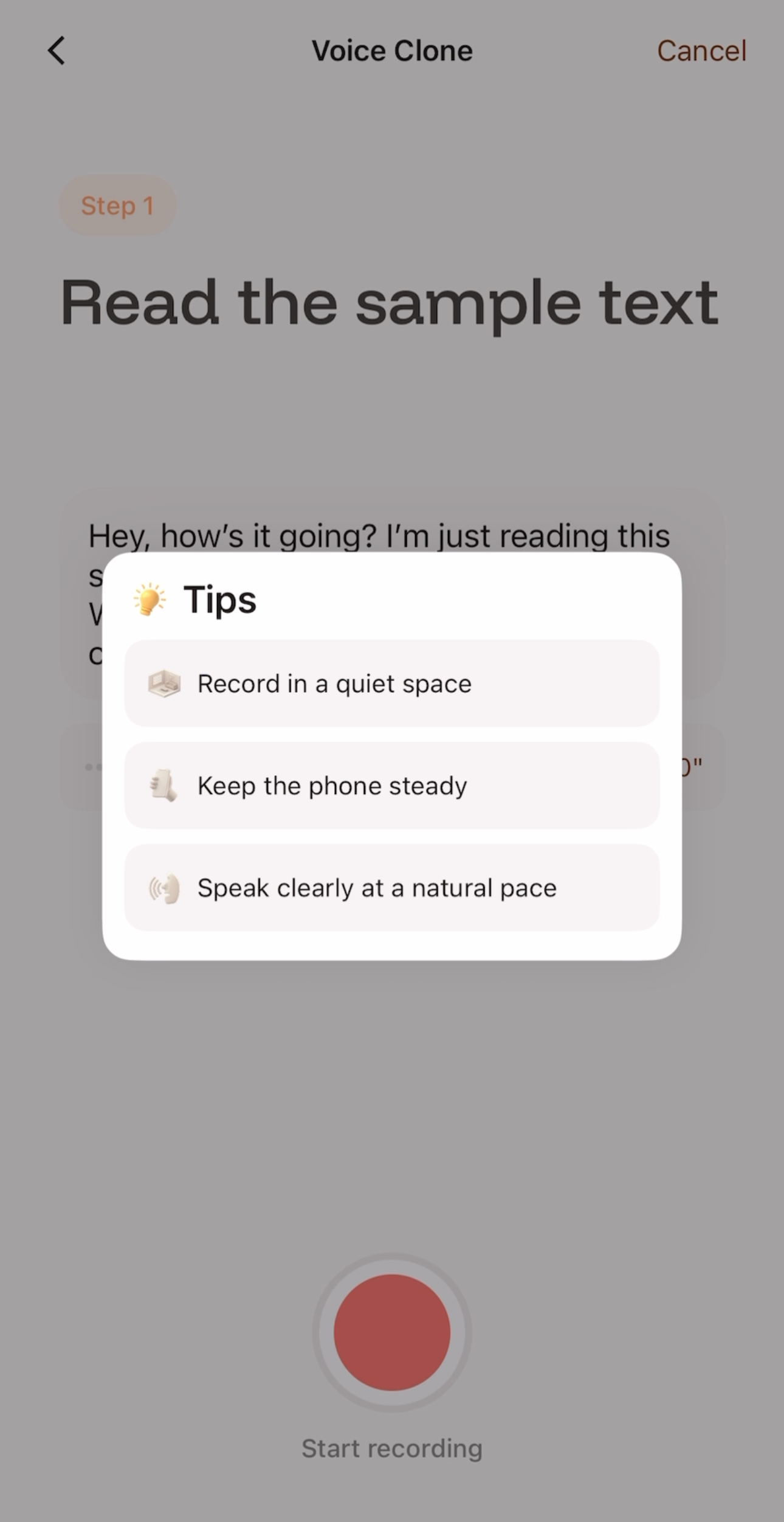 After reviewing the Tips, click "Start Recording" to begin the recording process.
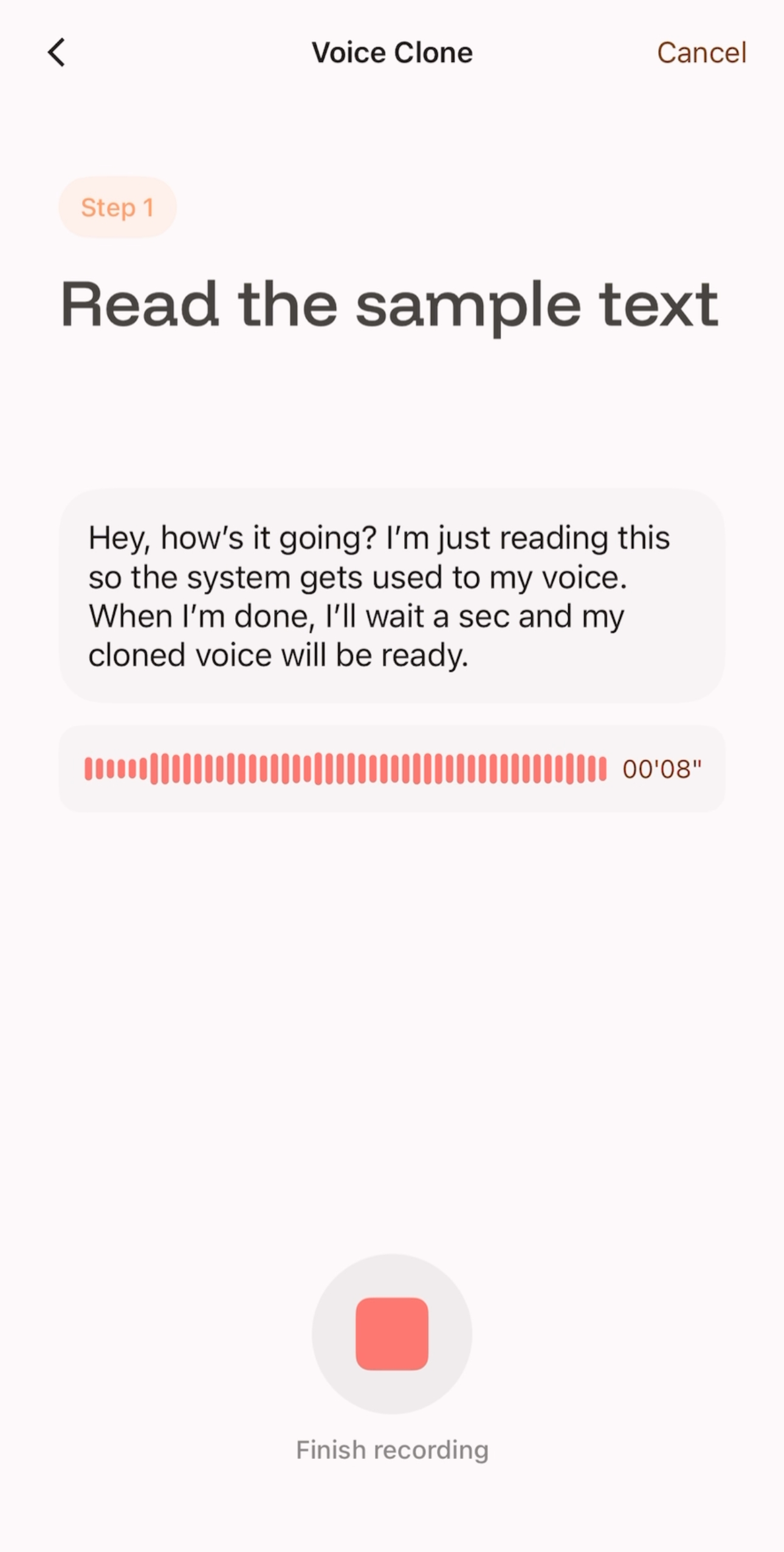 After reading, click "Finish Recording".
- After recording, you can preview your voice sample.
- If not satisfied, such as noise or unclear pronunciation, click Restart to re-record.
- If satisfied, click Next and wait 5-10 seconds.
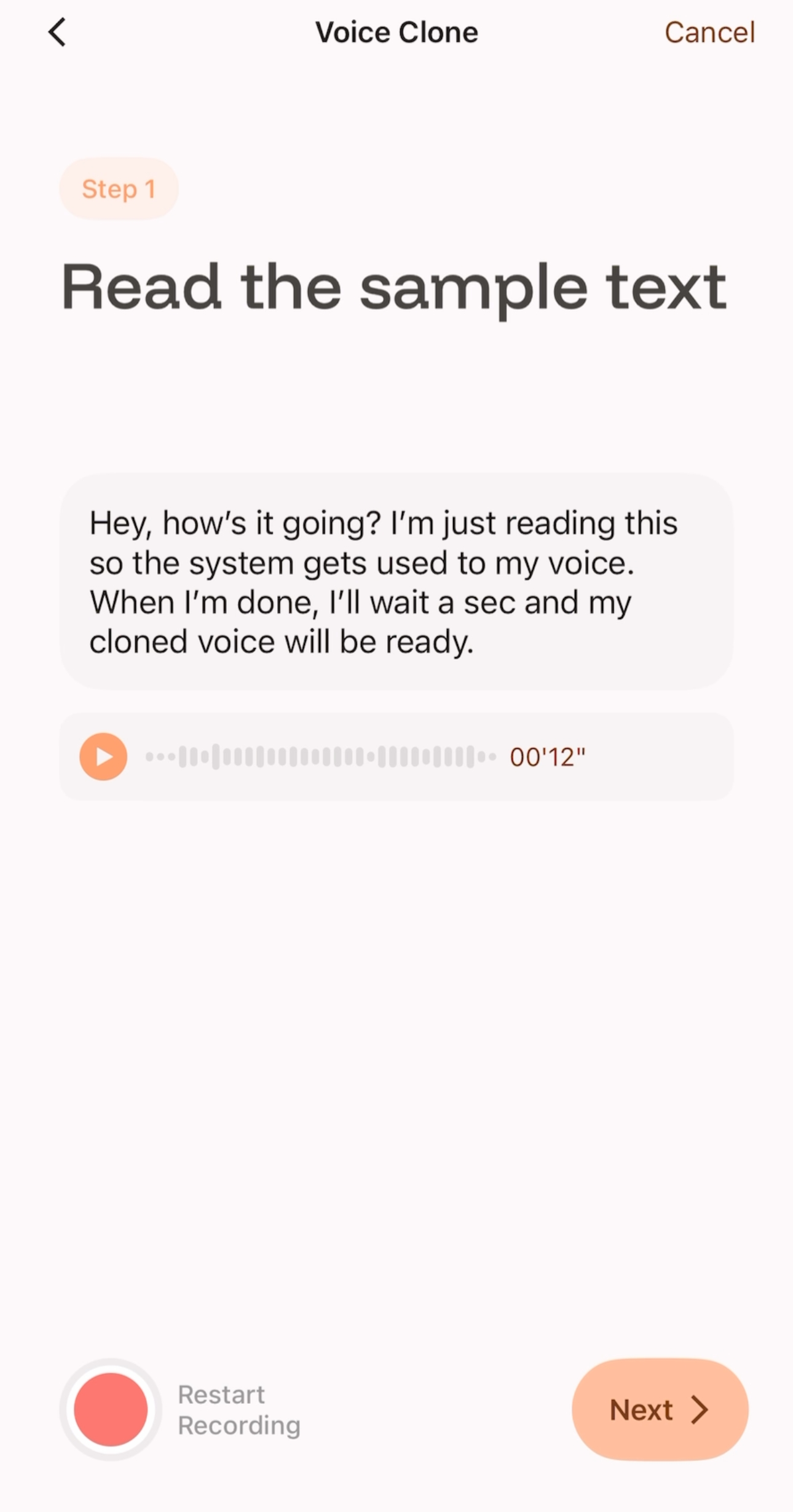 After confirming the preview, click "NEXT" to start the generation.
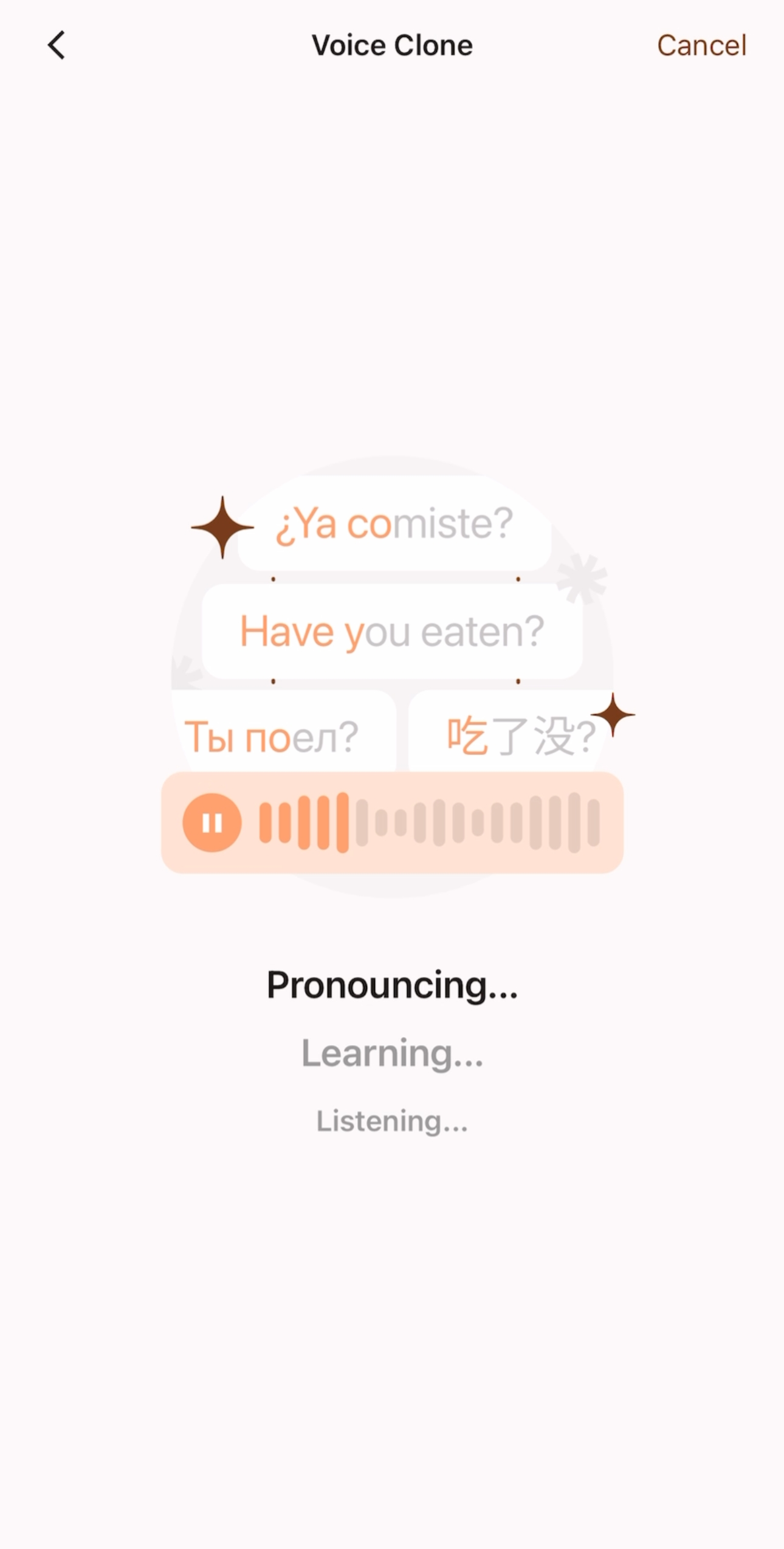 Wait 5-10 seconds for the cloning to complete.
- You can use this screen to preview how the cloned voice sounds when reading in other languages.
- If you confirm that you want to create this cloned voice, click "Next" to proceed to the next step and name your cloned voice, after which it can be saved and used.
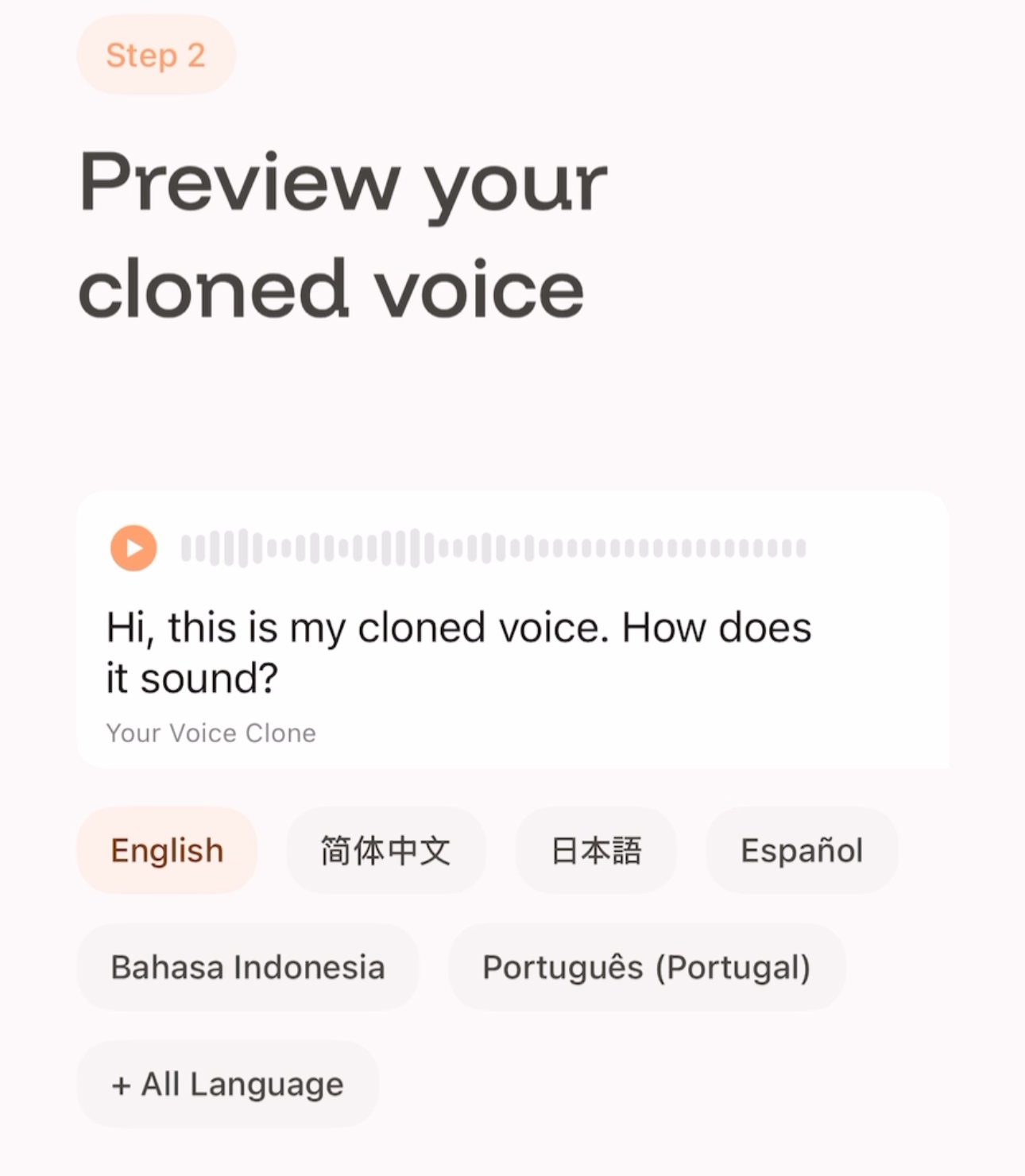 Click a language to switch the preview. More options are available under +All Language.
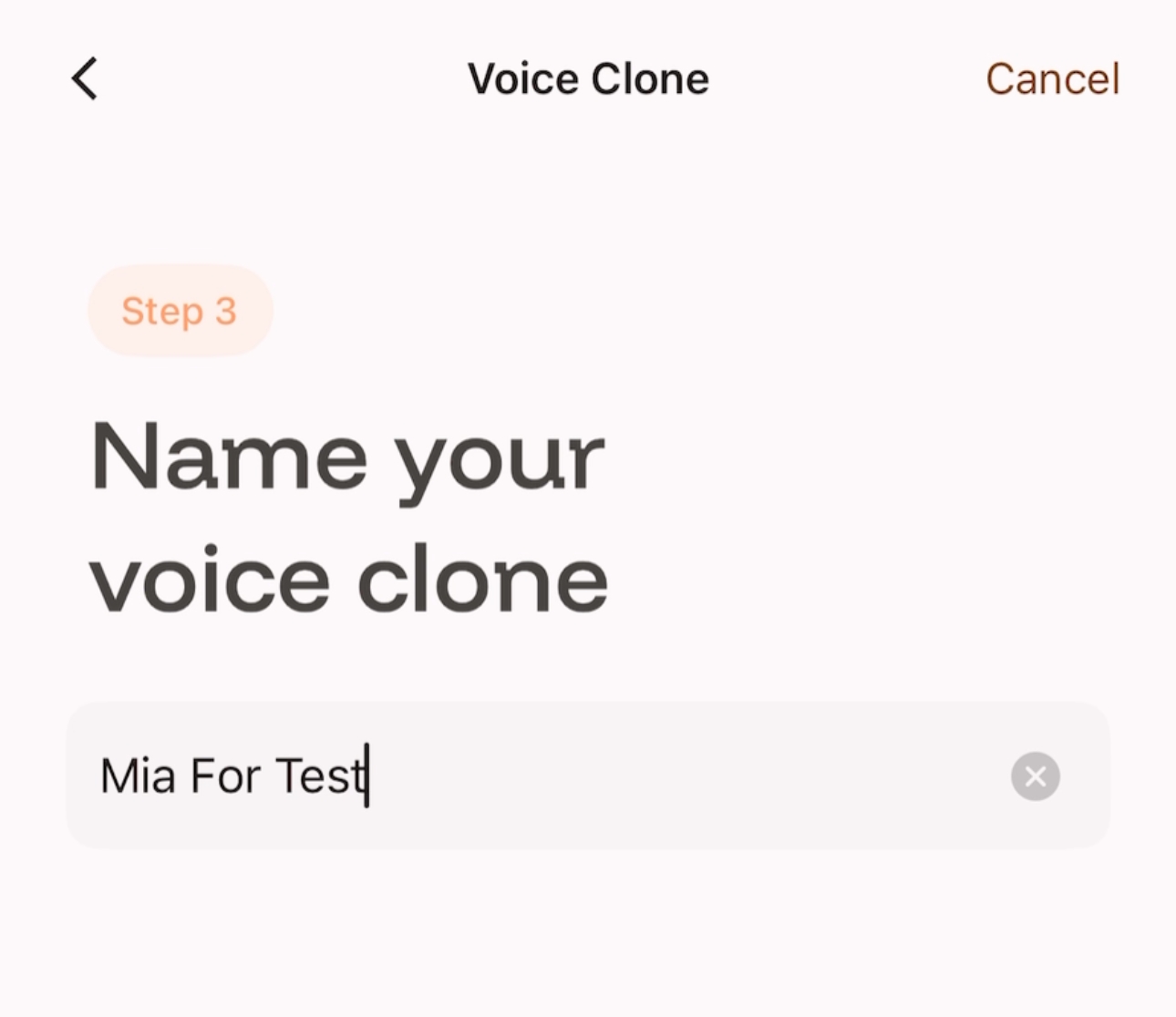 Complete the naming and save.
Your voice data is strictly protected and used only for this feature.
You can delete or update your voice samples at any time.
Intent will never use your voice data for any other purposes.
No. Intent does not read, listen to, or use your personal messages.
Your messages are processed only to provide real-time translation and voice features when you choose to use them.
Intent does not use your chat content for ads, profiling, or any other purposes.
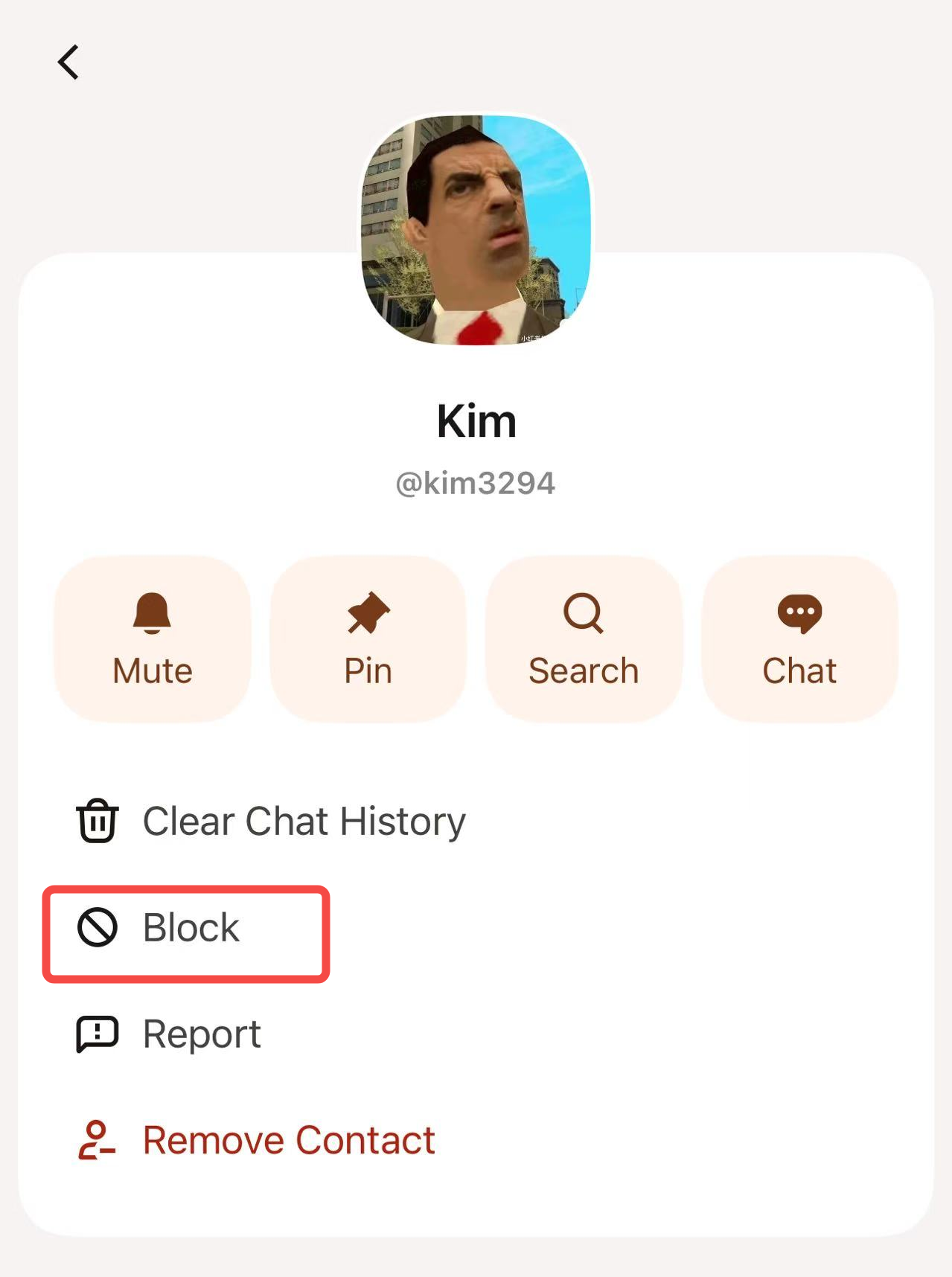
Yes. You can block or report users from the chat or profile page.
Yes. Intent works across iOS and Android devices.
If you have any questions, please contact us by email. We will respond within 24 hours.
Email: hello@intent.inc