- For first-time setup, go to Voice Management and add a voice sample.
- Once recorded, a sample cannot be edited, but you may delete and re-record it.
- Each account can store up to 3 samples.
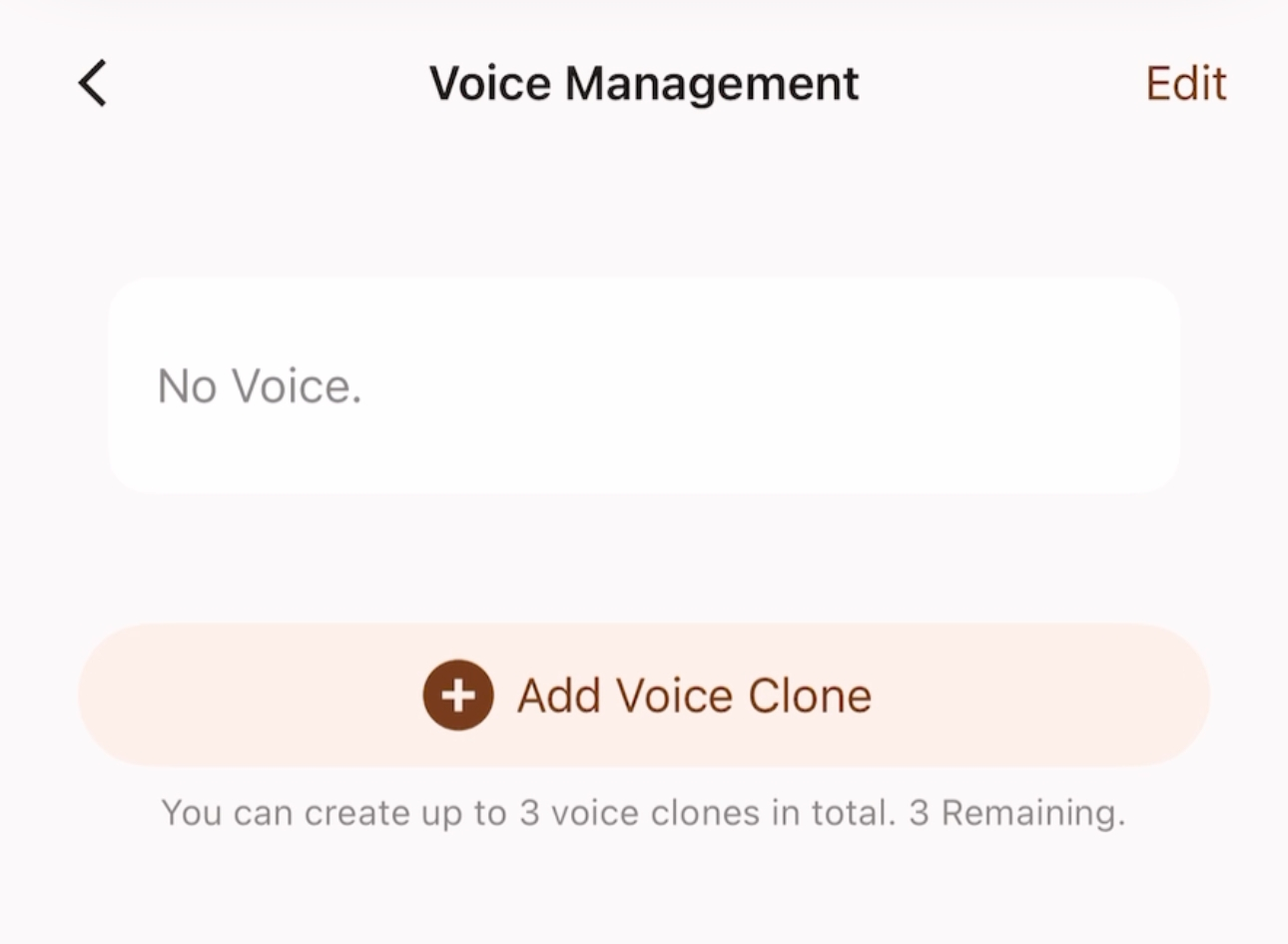
Existing voice samples will be displayed here. Click 'Add Voice Clone' to begin the recording process.
- Tap Start Recording and read the provided sample text as instructed.
- For best results, record at least 8 seconds in a quiet environment.
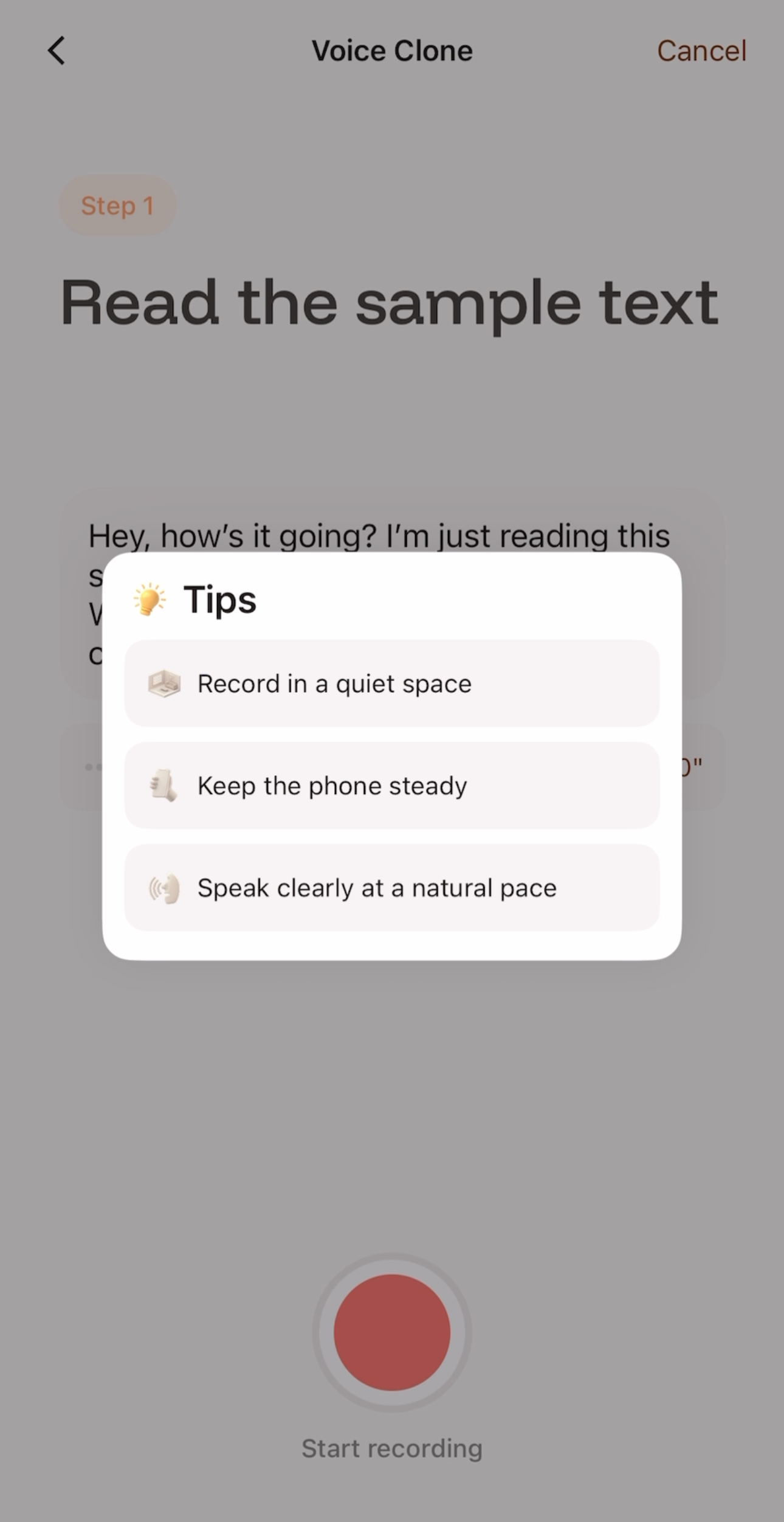
After reviewing the Tips, click 'Start Recording' to begin the recording process.
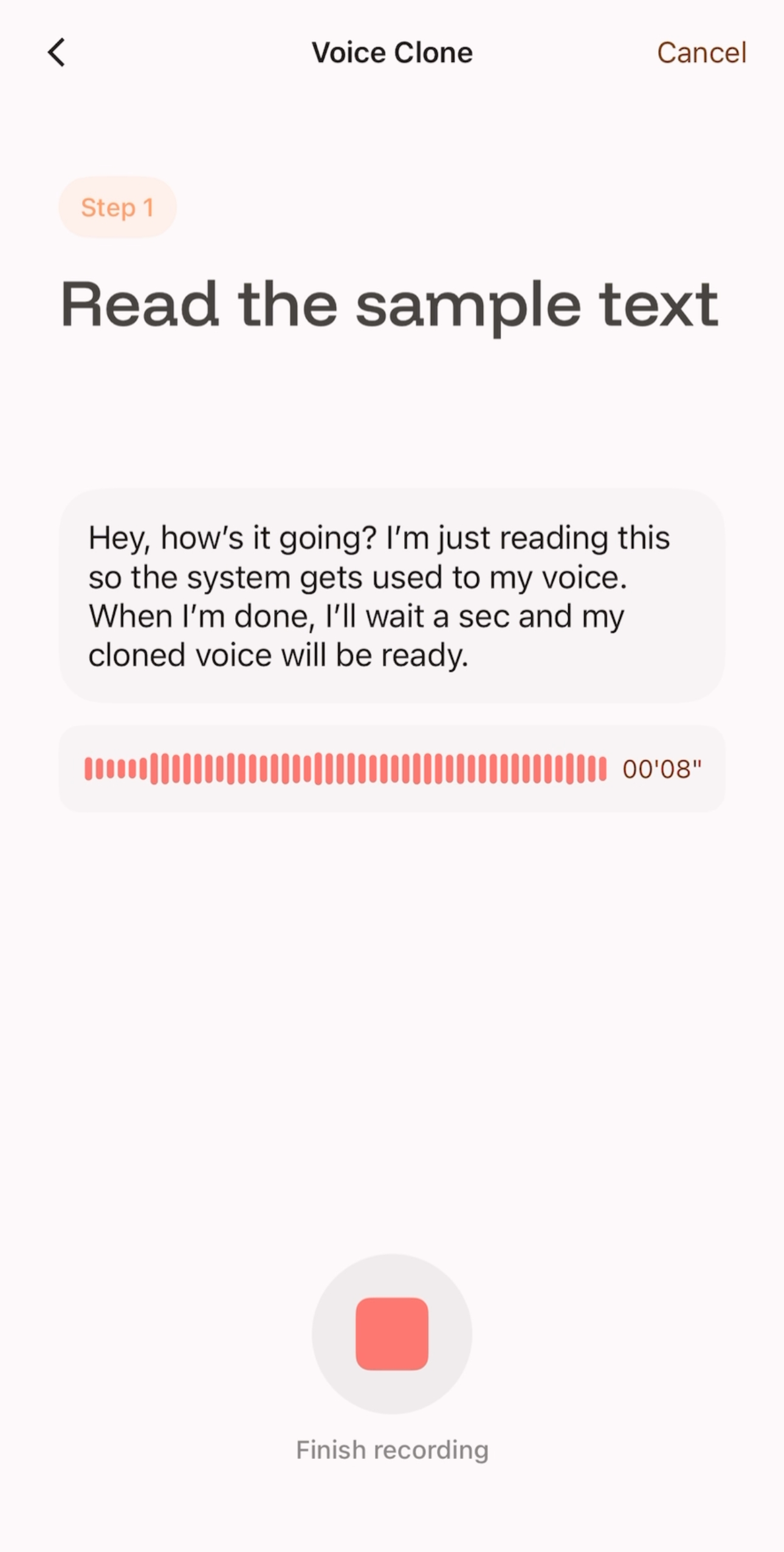
After reading, click 'Finish Recording'.
- After recording, you can preview your voice sample;
- If not satisfied (e.g., noise or unclear pronunciation), click Restart to re-record;
- If satisfied, click Next and wait 5–10 seconds;
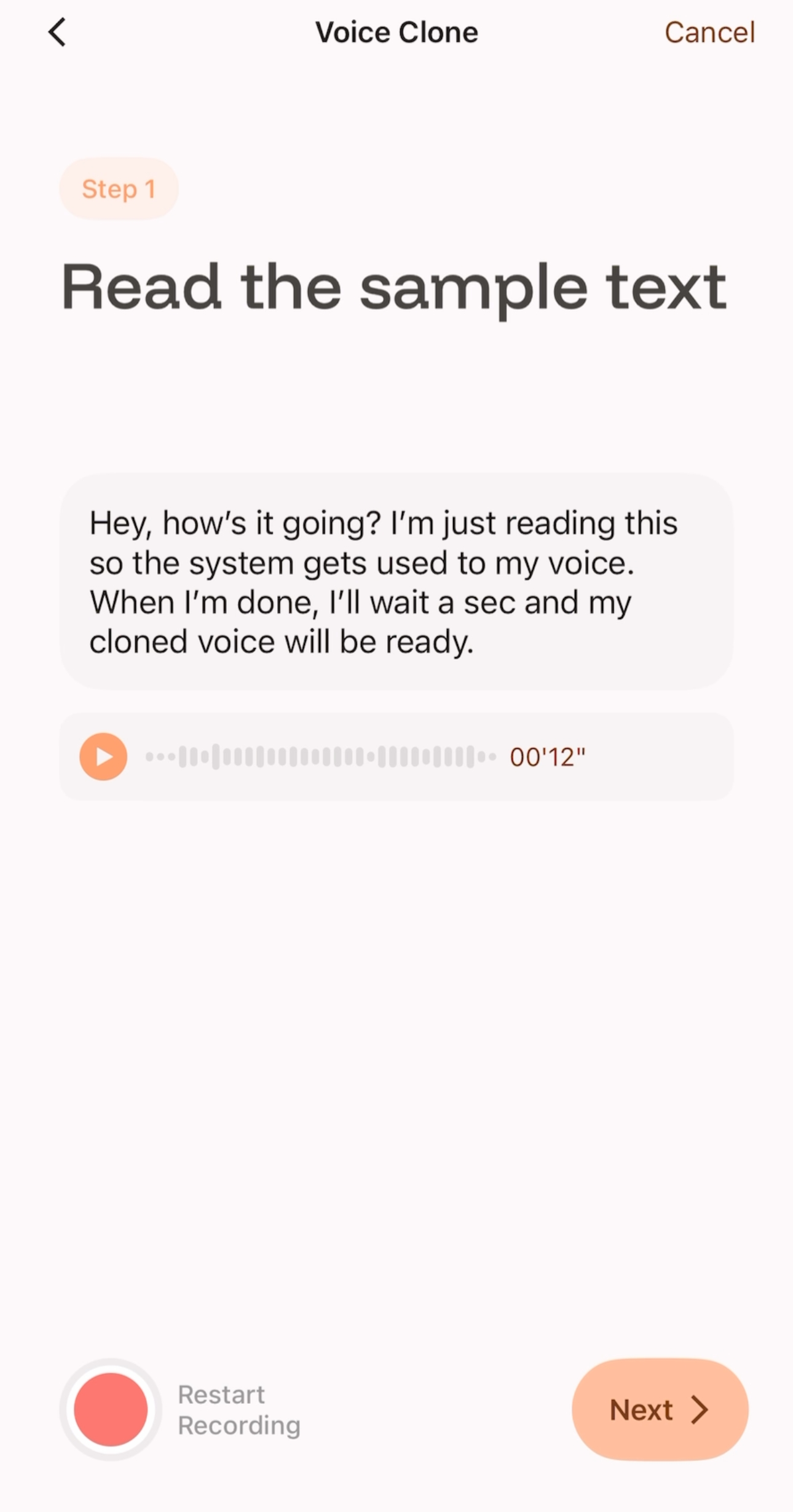
After confirming the preview, click 'NEXT' to start the generation.
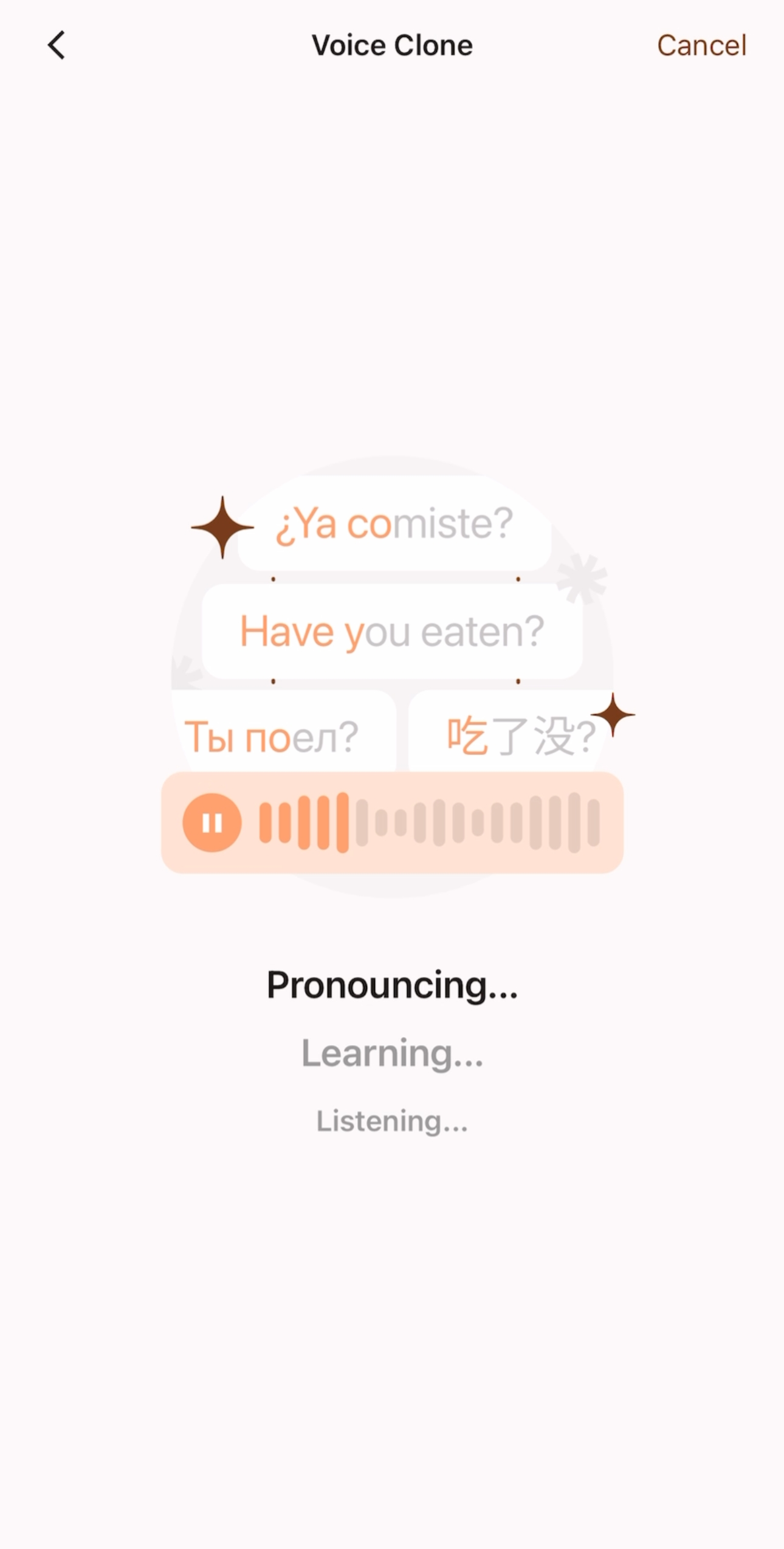
Wait 5–10 seconds for the cloning to complete.
- You can use this screen to preview how the cloned voice sounds when reading in other languages;
- If you confirm that you want to create this cloned voice, click "Next" to proceed to the next step and name your cloned voice, after which it can be saved and used.
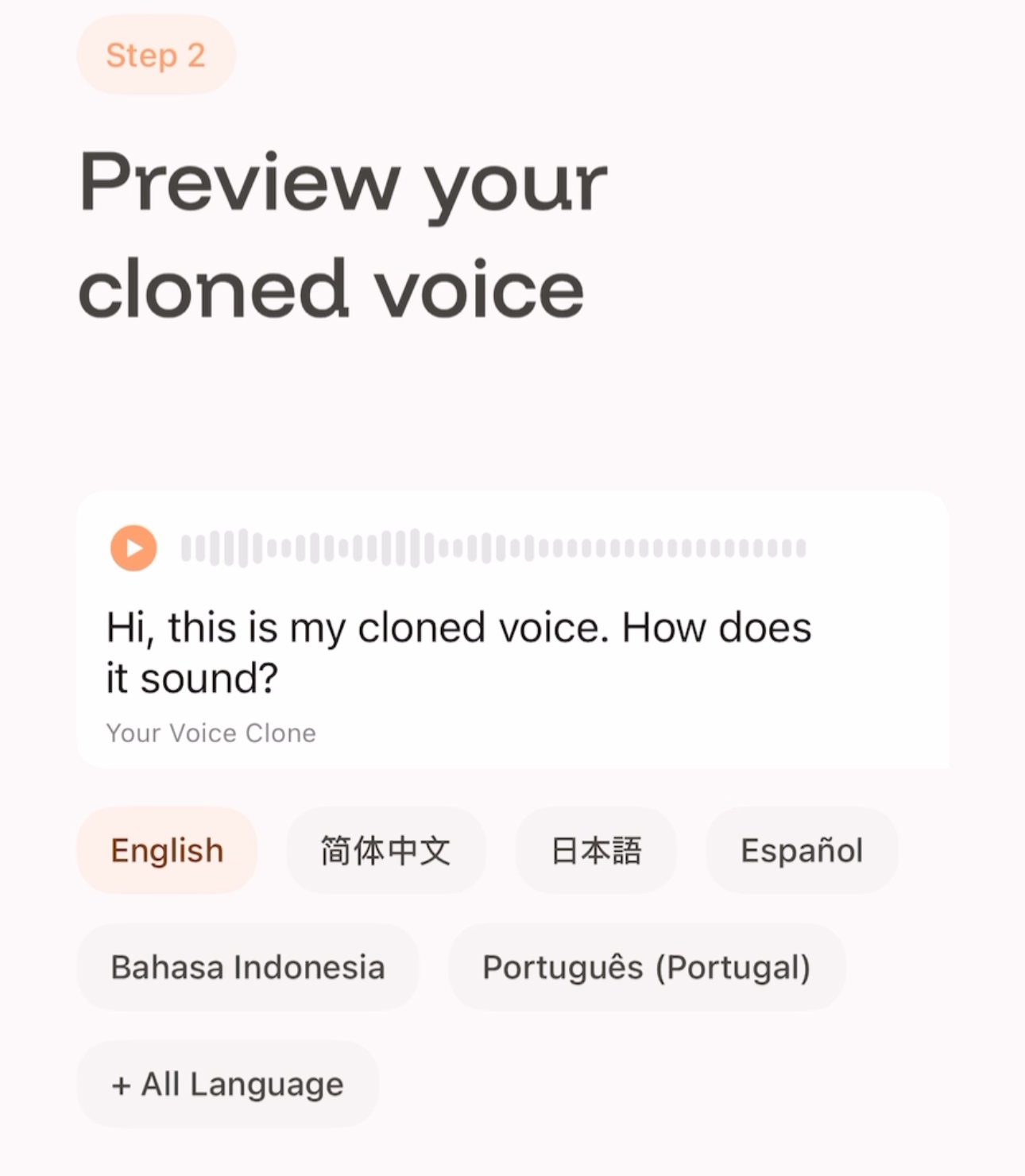
Click a language to switch the preview. More options are available under +All Language.
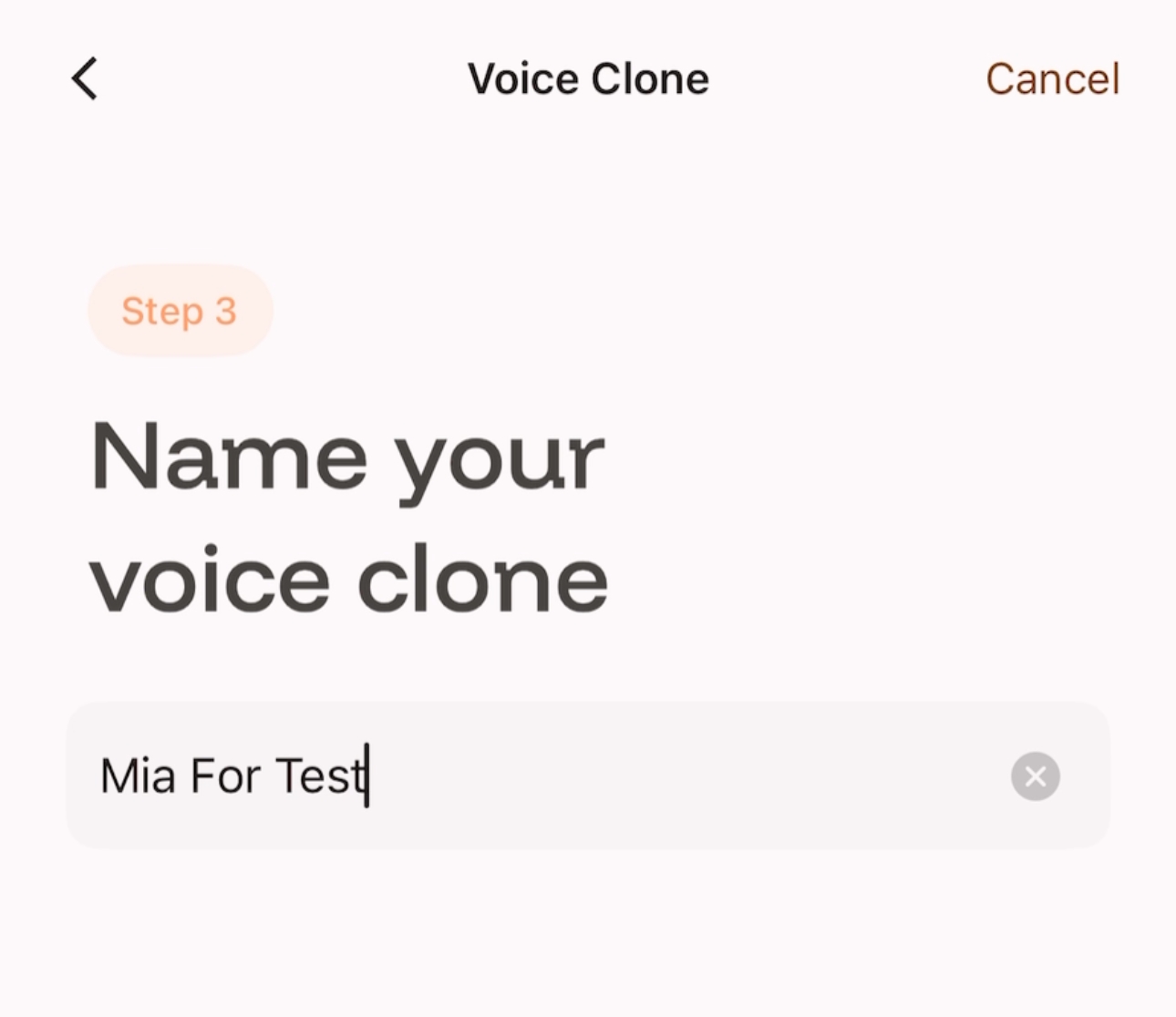
Complete the naming and save.