How to Translate Text in screenshot
You screenshot something in a foreign language, a chat message, a social media post, a recipe, a product listing, or a travel notice and you want to know what it says. Typing it out manually into a translator is tedious and error-prone, especially for languages with non-Latin scripts like Japanese, Korean, Chinese, or Arabic. What you need is a way to translate the screenshot directly.
In this guide, we walk through the fastest methods to translate screenshots on both iPhone and Android, including free tools that handle the entire process in seconds.
Why You Might Need to Translate a Screenshot
Screenshots capture text in contexts where copying and pasting is not possible. Here are the most common scenarios where people need to translate text in a screenshot:
- Chat messages — A friend or contact sends messages in another language. You screenshot the conversation to translate it.
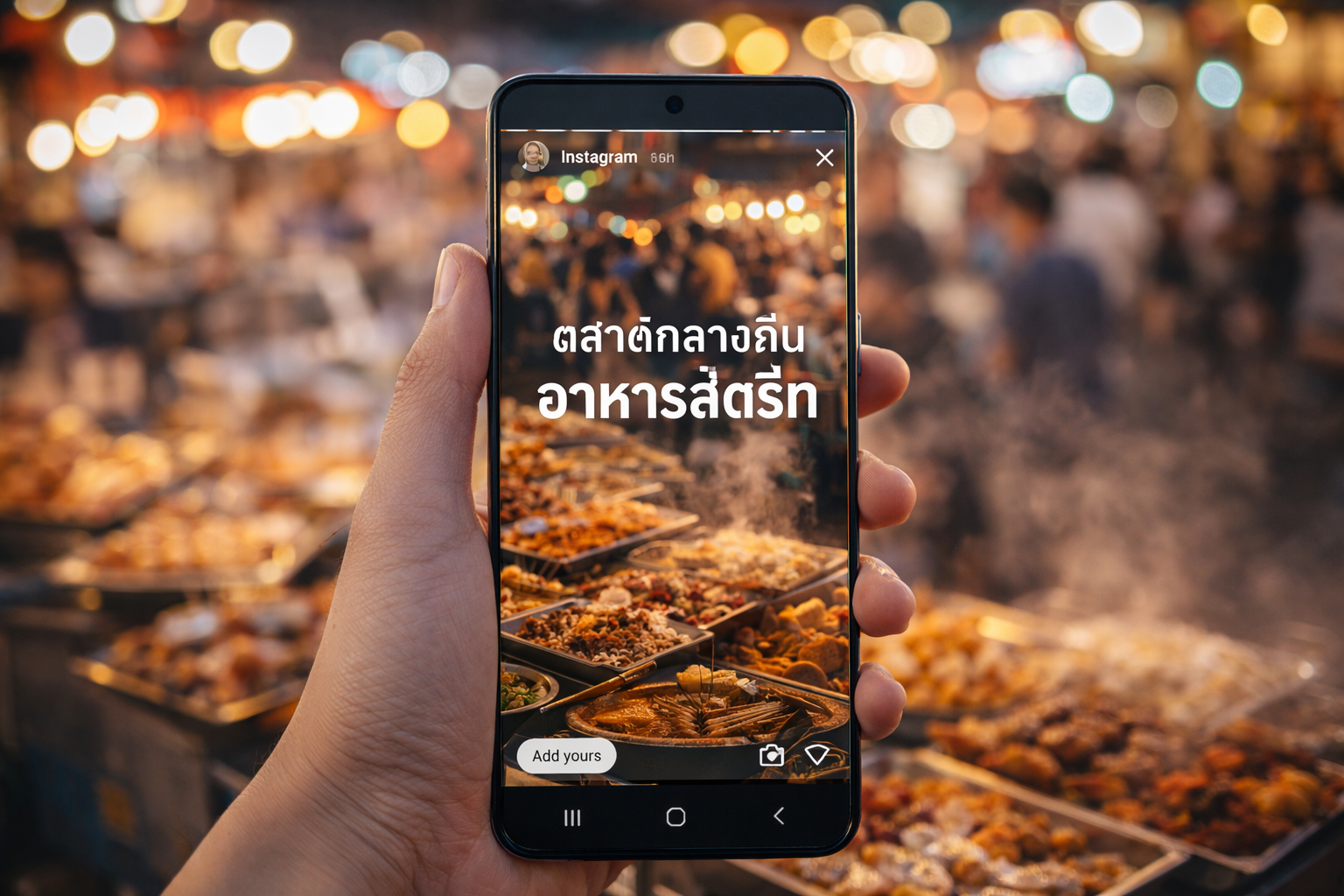
- Social media posts — An Instagram story, tweet, or TikTok caption in a foreign language catches your attention.
- Online shopping — A product listing on a foreign e-commerce site has important details in another language.
- Travel planning — Booking confirmations, transit schedules, or hotel instructions arrive in the local language.
- Work and study — A colleague shares a document or interface screenshot in a language you do not read.
- Gaming — Instructions, story dialogue, or event announcements in a game that has not been localized.
In all of these cases, the text is embedded in an image. You cannot select or copy it, so you need a tool that can detect and translate it visually.
Method 1: Use Intent's Free Online Screenshot Translator
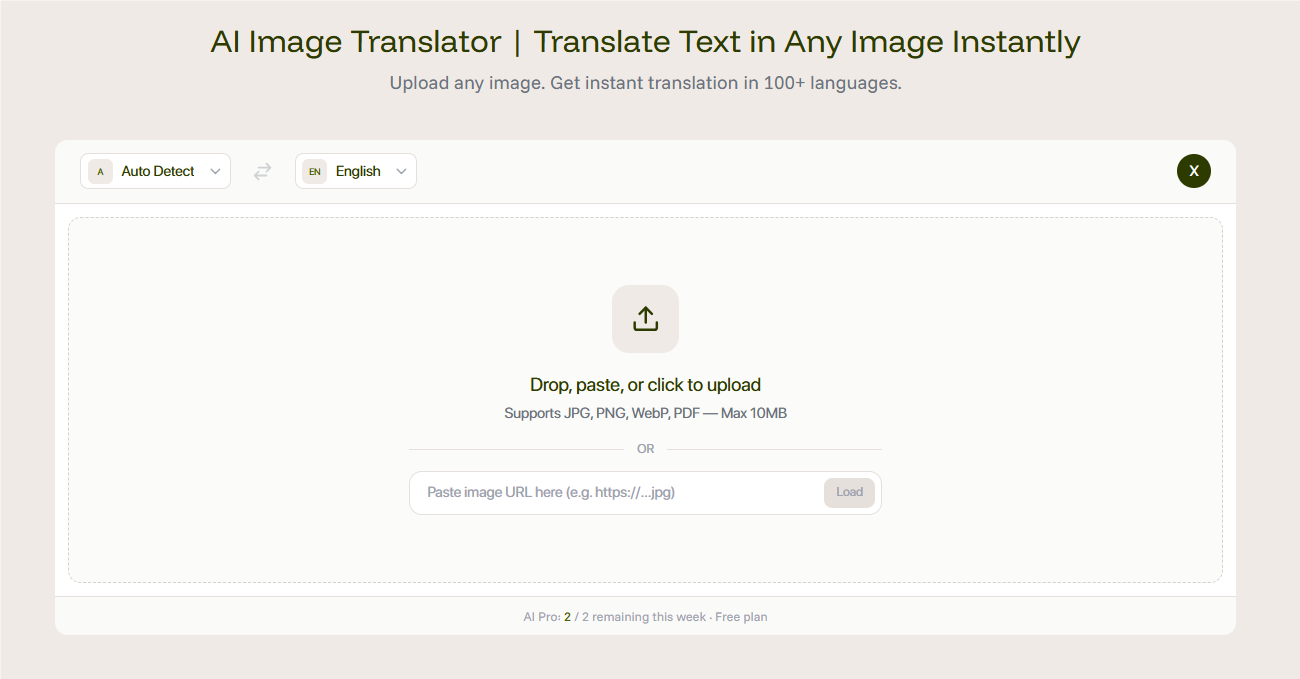
The simplest way to translate any screenshot is with Intent's free image translator. It works in your browser on both iPhone and Android — no app download required.
Steps:
- Take a screenshot on your phone (Power + Volume Up on iPhone, Power + Volume Down on most Android devices).
- Open your browser and go to Intent's image translator tool.
- Upload your screenshot.
- Select your target language.
- The AI detects all text in the image, translates it, and returns a new image with the translated text in place.
Why this works well:
- Handles any language — supports 100+ languages including Japanese, Korean, Chinese, Arabic, Thai, and more.
- Preserves the screenshot layout — translated text appears where the original was, so the context remains clear.
- No app to install — runs entirely in your browser on any device.
- Free to use — 2 translations right away, 5 after signing in.
This approach works for every type of screenshot: chat conversations, social media, documents, menus, product pages, and anything else with readable text.
Method 2: Use Built-In iPhone Features
If you are on an iPhone running iOS 16 or later, Apple's built-in Live Text and translation features can handle some screenshot translations:
- Open the screenshot in your Photos app.
- If the system detects text, you will see a Live Text icon in the lower-right corner.
- Tap and hold to select text, then choose "Translate" from the popup menu.
Pros:
- No extra app needed — built into iOS.
- Works offline for some language pairs.
Cons:
- Limited language support compared to dedicated tools — only about 18 languages.
- Does not translate directly on the image — extracted text appears in a separate panel.
- Struggles with stylized text, handwriting, and complex layouts.
- Does not work for languages Apple has not enabled for Live Text (no Thai, no Vietnamese, many others missing).
For screenshots with simple, clearly printed text in common languages, this is a convenient quick option. For anything more complex, a dedicated screenshot translator app delivers better results.
Method 3: Use Google Translate on Android
Android users can use Google Translate's image feature:
- Open Google Translate on your Android device.
- Tap the camera icon.
- Choose "Import" and select your screenshot from the gallery.
- Google Translate will detect text and display translations.
Pros:
- Supports 100+ languages.
- Free with no usage limits.
Cons:
- Translations appear as text overlays or in a separate panel — the original image layout is not preserved.
- Detection accuracy drops with complex backgrounds, small fonts, or mixed-language content.
- Requires switching apps — you cannot translate directly within the screenshot context.
For a translate screenshot to English quick check, Google Translate works. But when you need the translated result as a clean, shareable image with layout intact, Intent's image translator is the better option.
Which Method Should You Use?
The right approach depends on what you are translating and why:
- Quick personal reference — iPhone Live Text or Google Translate are fine for checking a word or phrase quickly.
- Chat screenshots you want to share — Intent works best because it creates a translated image you can share directly in conversations. If you often translate photos while traveling, the same tool handles that too.
- Manga, webtoon, or comic screenshots — Intent's layout-preserving translation is ideal. It uses the same technology behind its AI manga translator.
- Professional use — When you need polished translated screenshots for reports, presentations, or documentation, a tool that preserves layout and visual quality matters most.
For most screenshot translation needs across iPhone and Android, Intent provides the best combination of language coverage, layout preservation, and ease of use — all for free.
Try Intent's Screenshot Translator Free
Have more translation questions? Find guides, tips, and tool comparisons on the Intent blog.