You receive a screenshot of a business contract in German. A friend sends you a photo of a handwritten recipe in Italian. You spot a viral infographic on social media, but the text is in Korean. In each case, the information you need is right there in front of you — locked inside an image in a language you cannot read. Translating text from images used to require typing out each word manually into a translator, assuming you could even identify the characters. Today, the process is dramatically simpler: upload the image, pick your language, and read the translation. This guide explains how to translate text from any image for free using Intent's online image translator, and covers the techniques that get the best results.
Why Translating Text from Images Is Different from Regular Translation
When you translate text in a document or webpage, the words are already digital — you can copy, paste, and feed them directly to a translation engine. Images break this workflow entirely. The text is embedded in pixels, inseparable from backgrounds, colors, borders, and other visual elements. To translate text from an image, the tool must first perform text detection — finding where text appears in the image. Then it runs character recognition to convert those pixel patterns into actual letters and words. Only after both steps succeed can translation begin. This pipeline creates failure points that do not exist in regular text translation. Poor lighting makes text detection unreliable. Low resolution blurs characters together. Complex backgrounds confuse the recognition engine. Curved text on product packaging warps letter shapes. Handwritten text introduces inconsistent strokes and spacing. The quality of an image translator depends on how robustly it handles each of these steps. Intent's free online image translator combines all three steps — detection, recognition, and translation into a single integrated pipeline, producing translated images rather than disconnected text blocks.
How to Translate Text from an Image in 3 Steps
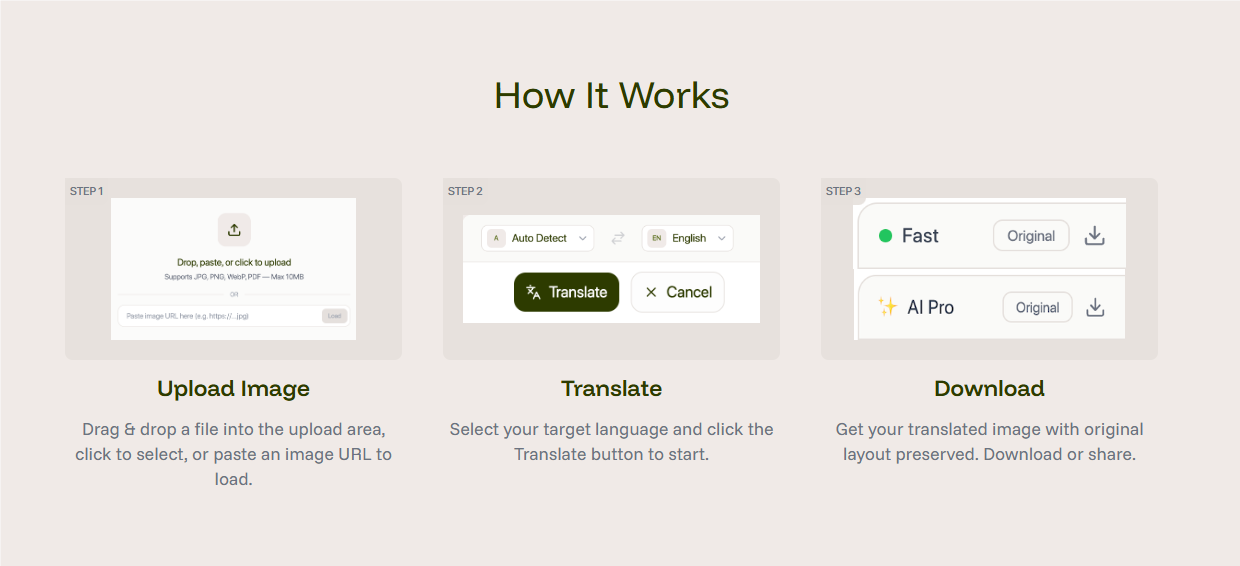
The process works on any device with a browser and takes under 30 seconds. Step 1: Get a clear image. Photograph the text you want to translate, or use an existing image — a screenshot, a scanned document, a downloaded infographic, or a saved photo. The sharper the text in the image, the better the result. Step 2: Upload to Intent. Open the image translation tool and upload your image. It accepts JPG, PNG, and PDF formats. No account creation or app download required. Step 3: Choose your target language and translate. Select any of 100+ supported languages and tap translate. Within seconds, Intent returns a new image with the translated text placed where the original text appeared, preserving the layout and visual context. This layout-preserving approach is critical for practical use. When you translate a product label, you need to see which translated text corresponds to which section. When you translate a floor plan or a map, spatial positioning matters. Intent maintains that structure automatically.
Translate Text from Any Image Free
Types of Images You Can Translate
The beauty of image translation is its versatility. Any image containing text in any language is a valid input. Here are the most common use cases. Screenshots from apps and social media. Foreign-language posts, comments, messages, and app interfaces can all be translated by screenshotting and uploading. This is especially useful for platforms that do not offer built-in translation or where the built-in option is poor. For a step-by-step walkthrough, see our guide on how to translate text in a screenshot. Photographed documents and paperwork. Contracts, invoices, medical forms, academic certificates, and official letters in foreign languages can be quickly understood by photographing each page and translating. While this is not a substitute for certified translation, it provides immediate comprehension. Product packaging and labels. Skincare products from Korea, snacks from Japan, supplements from China, wine from France — global shopping means encountering foreign labels constantly. Image translation lets you read ingredients, instructions, and warnings instantly. Street signs, notices, and public information. Travel destinations, government offices, hospitals, and public spaces often display important information only in the local language. A quick photo translation while traveling provides the meaning without requiring local language knowledge. Manga, comics, and illustrated content. Visual storytelling with embedded text, including manga speech bubbles, comic captions, annotated illustrations, can be translated while preserving the artwork. Intent is widely used for manga image translation in dozens of languages.

How to Get the Best Translation Quality
The accuracy of image text translation depends heavily on input quality. These techniques consistently improve results. Resolution matters. Higher-resolution images produce better character recognition. If you are photographing text, get as close as possible rather than cropping a distant shot. If you are working with a screenshot, use the original resolution rather than a compressed thumbnail. Contrast is critical. Dark text on a light background — or light text on a dark background — translates most reliably. Avoid images where the text color blends into the background, or where patterns and textures compete with the characters. Keep it flat and straight. Curved surfaces like bottles, folded documents, and angled signs distort character shapes. Flatten documents before photographing. Shoot signs and labels straight-on rather than from an angle. Isolate the text area. If the image contains a small text region within a large photograph, crop to just the text area before uploading. This focuses the recognition engine on the relevant content and avoids false detections in decorative elements. Handle multiple languages separately. If an image contains text in two different languages — common on international packaging — the tool may mix them. For best results, crop each language section separately and translate individually. Check the Intent blog for more image translation tips, and see our roundup of the best image translators online to compare your options.
Why Intent Is the Best Way to Translate Text from Images
Dozens of tools claim to translate text from images, but the experience varies dramatically. Intent stands out for practical reasons that matter in real use. Translated image output, not just extracted text. Most competitors return a block of plain translated text stripped of all formatting. Intent returns a new image with translated text positioned where the original appeared. This is the difference between useful output and output that requires you to puzzle out what goes where. Single integrated pipeline. Intent does not split the process into separate "extract text" and "translate text" steps that you manage manually. Upload once, get a complete translated image. No intermediate copying, pasting, or switching between tools. 100+ languages with natural output. From Japanese and Arabic to Portuguese and Hindi, Intent translates between any language pair with context-aware quality. The output reads as natural language, not as a robotic word substitution. Free and accessible. No software to install. No account to create for basic use. The image translation tool runs in any browser on any device — phone, tablet, or computer. Fast results. Upload to translated image in under 10 seconds for most photos. When you need a quick answer — "What does this label say?" or "What is this sign warning me about?" — speed matters. There is no reason to struggle with foreign text trapped in images. Whether it is a screenshot, a photo, a scanned document, or a downloaded graphic, one upload is all it takes to read it in your language.